
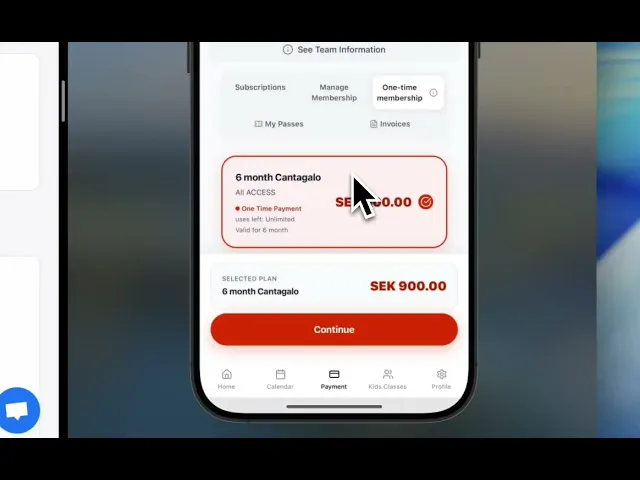
Coach Guide: Setting Up Class Passes
What Are Class Passes?
Class passes are one-time payment products that give students access to your gym for a specific period without recurring billing.
Perfect for:
Trial periods (1 month, 3 months)
Seasonal memberships (6 months, 1 year)
Drop-in packages (10 classes, 20 classes)
Students who prefer paying upfront
Gift memberships
Summer/winter programs
Difference from Subscriptions:
✅ Class Pass = Student pays once, gets access for X months/classes
❌ Subscription = Student pays monthly, auto-renews until cancelled
🛠️ How to Create a Class Pass
Step 1: Navigate to Plan Section
Log in to your Kombat Evolve dashboard
Click "Plan" in the left sidebar (credit card icon)
You'll see your current subscriptions and one-time products
Step 2: Create New Product
Click the "Create Product" button (top right)
A modal will open: "Create Product - Set up a subscription plan, class pass, or merchandise"
Step 3: Configure Product Type
Product Type: Select "Class Pass" from the dropdown
This ensures it's a one-time payment, not recurring
Buy Now Pay Later (BNPL):
✅ Check this box if you want to offer Klarna payment options
Good for larger amounts (6-month, 1-year passes)
Lets students split payment into installments
Step 4: Product Details
Product Name: Enter a clear, descriptive name. Examples:
"6 Month Access"
"Summer 2025 - 6 Months"
"Annual Membership"
"10 Class Pack"
"3 Month Trial"
Description: Explain what's included. This appears on the student's checkout page.
Examples:
"All ACCESS - Unlimited classes for 6 months"
"Full gym access including BJJ, MMA, and fitness classes"
"10 classes - use within 3 months"
Step 5: Pricing
Amount: Enter the one-time price (e.g., 8900 for SEK 8,900 or 760 for €760)
Currency: Select from dropdown:
USD (United States Dollar)
EUR (Euro)
SEK (Swedish Krona)
GBP (British Pound)
And more...
💡 Tip: Choose the currency your gym primarily operates in
Step 6: Access Configuration
Classes Allowed:
Enter "0" for UNLIMITED classes during the validity period
Or enter a specific number (e.g., "10" for a 10-class pack)
Validity: Choose from dropdown:
1 month
3 months
6 months
12 months
Custom period
Important: This is when the pass expires, NOT how many classes they can take.
Example Configurations:
Unlimited 6-Month Pass:
Classes Allowed: 0
Validity: 6 months
Result: Student can attend unlimited classes for 6 months
10-Class Pack:
Classes Allowed: 10
Validity: 3 months
Result: Student has 10 classes to use within 3 months
Annual Membership:
Classes Allowed: 0
Validity: 12 months
Result: Unlimited access for 1 year
Step 7: Product Images (Optional)
Upload an image for the product:
Click the upload area
Select image from your computer
This appears on your student-facing payment page
Optional but recommended for professional look
Step 8: Save Product
Click "Create Product" or "Save" button at the bottom
Your class pass is now live! ✅
📊 Managing Your Class Passes
View All Products
Go to Plan section to see:
Subscriptions tab: Monthly recurring plans
One-Time Products tab: Your class passes
Each product shows:
Name and description
Price in your currency
"Class Pass" or "BNPL Available" badges
Active/Inactive status
Edit/Delete options
Tracking Sales
Go to Payments section → One Time Payments tab
You'll see:
Which students purchased which passes
Payment status (completed, pending, failed)
Access period (when it starts and ends)
Total revenue from one-time products
PDF invoices for each transaction
Key Metrics:
Total Revenue: Split by currency (EUR, SEK, etc.)
Active Students: How many currently have valid passes
Access Until: When each student's pass expires
Access Time: How many days remaining
💡 Best Practices
Pricing Strategy
6-Month Pass Pricing:
Calculate: Monthly subscription × 6 × discount factor
Example: €75/month × 6 = €450
Offer at €390 (save €60 = 13% discount)
Encourages longer commitment
Annual Pass Pricing:
Offer 20-30% discount vs monthly
Example: €75/month × 12 = €900
Offer at €650 (save €250 = 28% discount)
Locks in committed students
Product Naming
Clear and Descriptive: ✅ "6 Month All Access - Summer 2025" ✅ "Annual Membership - Unlimited Classes" ✅ "10 Class Starter Pack"
Avoid Vague Names: ❌ "Package A" ❌ "Option 2" ❌ "6 month"
Access Configuration Tips
For Trial/Onboarding:
1 month, unlimited classes
Lower price to attract new students
Goal: Convert to subscription after
For Committed Students:
6-12 months, unlimited classes
Discount vs monthly rate
Ideal for students who train frequently
For Casual Students:
10-20 class packs
3-6 month validity
Good for students with irregular schedules
🎁 Common Use Cases
1. Gift Memberships
Setup:
Product Name: "Gift Membership - 3 Months"
Price: €200
Classes: 0 (unlimited)
Validity: 3 months
Description: "Perfect gift for someone starting their martial arts journey!"
How it works:
Someone purchases the pass
You manually assign it to the recipient
Recipient gets 3 months access
2. Summer Camp / Intensive Program
Setup:
Product Name: "Summer Training Camp 2025"
Price: SEK 5,000
Classes: 0 (unlimited)
Validity: 3 months
Description: "June-August intensive training program"
3. Student/Senior Discount Pass
Setup:
Product Name: "Student Annual Pass"
Price: €500 (discounted from €650)
Classes: 0
Validity: 12 months
Description: "Annual pass for students - Valid student ID required"
Note: Manually verify student status before granting access
4. Comeback Pass
Setup:
Product Name: "Welcome Back - 2 Months"
Price: €100
Classes: 0
Validity: 2 months
Description: "Special offer for returning students"
Use for: Re-engaging inactive students
5. Competition Prep Package
Setup:
Product Name: "Competition Prep - 4 Months"
Price: SEK 4,000
Classes: 0
Validity: 4 months
Description: "Intensive training with competition prep focus"
⚠️ Common Mistakes to Avoid
❌ Wrong Product Type
Problem: Selecting "Subscription" instead of "Class Pass" Result: Student gets charged monthly instead of once Fix: Always double-check product type dropdown
❌ Confusing Validity Period
Problem: Setting "Classes Allowed: 10" and "Validity: 1 month" thinking it means 10 classes per month Result: Student gets only 10 classes total, then pass expires after 1 month Correct Setup:
For unlimited monthly: Classes: 0, Validity: 1 month
For 10 classes over time: Classes: 10, Validity: 3-6 months
❌ Pricing in Wrong Currency
Problem: Entering 8900 thinking it's €89.00 Result: Student charged €8,900.00 😱 Fix: Always verify amount and currency match before saving
❌ Missing Description
Problem: No description or unclear description Result: Students don't understand what they're buying Fix: Always write clear, detailed description
🔄 Editing or Deleting Products
To Edit a Product:
Go to Plan section
Find the product in One-Time Products list
Click the edit icon (pencil)
Make your changes
Click Save
⚠️ Note: Changes affect new purchases only, not existing active passes
To Deactivate a Product:
Find the product
Click the status toggle
Product becomes "Inactive" - no longer available for purchase
Existing student passes remain active
To Delete a Product:
Find the product
Click the trash icon
Confirm deletion
⚠️ Warning: This is permanent and cannot be undone
When to delete vs deactivate:
Deactivate: Seasonal offers you might bring back
Delete: Products you created by mistake or will never use again
📈 Tracking Success
Monitor in Payments Section
Overview Tab:
Total revenue from all one-time products
Revenue split by currency
Number of active students with passes
One-Time Payments Tab:
Individual transactions
Student names and belt levels
Purchase dates
Expiration dates
Days remaining for each pass
Invoice PDFs
Key Metrics to Watch:
Conversion Rate:
How many discovery calls → class pass purchases
Which pass durations sell best (3-month vs 6-month vs annual)
Student Retention:
Do students on 6-month passes renew?
Conversion rate from class pass → monthly subscription
Revenue Per Student:
Average purchase value
Lifetime value of class pass customers
🎯 Quick Setup Checklist
Before creating your first class pass, have these ready:
[ ] Product name decided
[ ] Clear description written
[ ] Price calculated (including any discounts)
[ ] Currency confirmed
[ ] Validity period chosen (1, 3, 6, 12 months)
[ ] Classes allowed decided (0 for unlimited, or specific number)
[ ] Product image prepared (optional)
Then follow the 8 steps above! ⬆️
🆘 Troubleshooting
"Student says they paid but don't have access"
Check:
Payments section → One-Time Payments tab
Find the student's name
Check status:
Completed: Payment successful, access should be active
Pending: Payment processing, wait 24h
Failed: Payment didn't go through
Solution:
If completed but no access: Contact Kombat Evolve support
If pending: Ask student to check with their bank
If failed: Student needs to try payment again
"I can't find the product I just created"
Check:
You're on the correct tab (One-Time Products, not Subscriptions)
Product wasn't accidentally deleted
Refresh the page
"Student's pass expired but they say they still have time"
Check:
Payments → One-Time Payments
Find student → Check "Access until" date
System automatically disables access after expiration
Student might be confusing calendar days with their access end date
Solution: Show them the exact expiration date in the system
"BNPL option isn't showing at checkout"
Check:
BNPL was enabled when creating the product
Student's country supports Klarna
Amount meets Klarna minimum (usually €50+)
💬 Need Help?
For Product Setup Questions:
Email: contact@kombatevolve.com
Response time: 24-48 hours
For Payment Issues:
Stripe Dashboard: Check your Stripe Connect dashboard (link in Payments section)
Kombat Evolve Support: For technical issues with the platform
For Feature Requests:
Have an idea for improving class passes? Email us!
We're always improving based on coach feedback
🚀 Ready to Create Your First Class Pass?
Quick Start:
Go to Plan in your dashboard
Click Create Product
Select Class Pass
Fill in the details using this guide
Click Save
You're done! Share the payment link with your students or they can purchase through your academy's website.