
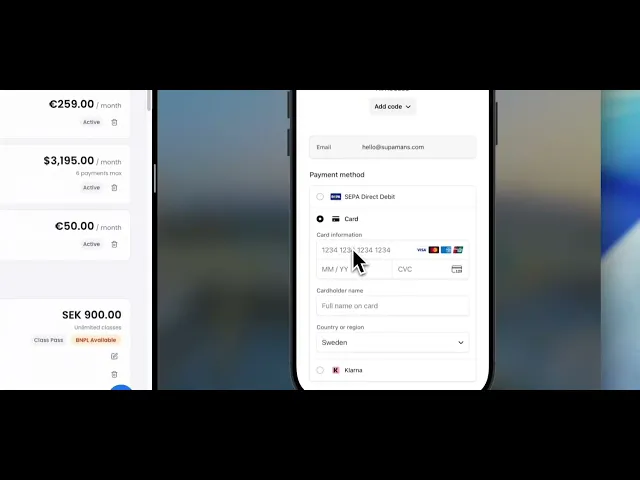
Coach Guide: Setting Up Subscription Plans

🎯 What Are Subscriptions?
Subscriptions are recurring monthly payment plans that automatically charge students every month until they cancel.
Perfect for:
Regular monthly memberships
Standard gym memberships
Auto-renewing student plans
Predictable monthly revenue
Long-term student commitments
Difference from Class Passes:
✅ Subscription = Student pays monthly, auto-renews until cancelled
❌ Class Pass = Student pays once for a fixed period (6 months, 1 year)
🛠️ How to Create a Subscription Plan
Step 1: Navigate to Plan Section
Log in to your Kombat Evolve dashboard
Click "Plan" in the left sidebar (credit card icon)
Click the "Subscriptions" tab to see your recurring plans
Step 2: Create New Product
Click the "Create Product" button (top right)
A modal will open: "Create Product - Set up a subscription plan, class pass, or merchandise"
Step 3: Configure Product Type
Product Type: Select "Subscription" from the dropdown
This creates a recurring monthly payment plan
Students will be auto-charged every billing interval
Step 4: Product Details
Product Name: Enter a clear, descriptive name that students will see.
Good Examples:
"Monthly Membership - BJJ Gi"
"All Access - Monthly"
"Adult BJJ Subscription"
"Kids Program - Monthly"
"BJJ +50 - Senior Program"
Avoid:
"Plan A" or "Option 1" (too vague)
"Subscription" (not descriptive)
Technical codes like "SUB-001"
Description: Explain what's included in the membership.
Good Examples:
"Access to all classes"
"Unlimited BJJ, MMA, and fitness classes"
"All Gi classes - 6+ classes per week"
"For people more than 50 years old - modified training intensity"
Why this matters: This text appears on checkout pages and helps students understand what they're paying for.
Step 5: Pricing
Amount: Enter the monthly price (e.g., 7500 for $75.00 or 75 for €75)
💡 Important: Enter the amount in cents/smallest currency unit:
$75 = enter 7500
€50 = enter 5000
SEK 850 = enter 85000
Currency: Select from dropdown:
USD (United States Dollar)
EUR (Euro)
SEK (Swedish Krona)
GBP (British Pound)
And more...
⚠️ Double-check: Amount and currency are correct before saving!
Step 6: Billing Configuration
Billing Interval: Select from dropdown:
Monthly (most common)
Weekly
Yearly
Custom
Interval Count: How often to charge within the billing interval.
Examples:
Billing Interval: Monthly, Count: 1 = Charge every 1 month
Billing Interval: Monthly, Count: 3 = Charge every 3 months
Billing Interval: Weekly, Count: 1 = Charge every week
💡 Recommendation: Keep it simple with Monthly/1 for standard memberships
Step 7: Maximum Billing Cycles (Optional)
What it does: Automatically cancels the subscription after X billing cycles.
Examples:
Enter "6" = Subscription auto-cancels after 6 months
Enter "12" = Subscription auto-cancels after 1 year
Leave empty = Subscription continues indefinitely until student cancels
When to use:
Trial memberships (set to 3 or 6 months)
Fixed-term commitments
Promotional offers with expiration
When to skip:
Standard ongoing memberships
When you want students to stay as long as they want
Example use case: "6-Month Commitment Plan - Monthly" with Maximum Billing Cycles: 6
Student pays monthly for 6 months
After 6 months, subscription auto-cancels
Student must purchase again to continue
Step 8: Product Variants (Optional)
Checkbox: "This product has different sizes (e.g., clothing)"
When to check:
You're selling merchandise with sizes (S, M, L, XL)
You have different membership tiers within one product
You need variant options
For standard memberships: Leave this unchecked
"Product will be available without size options"
For merchandise: Check this box to add size variants
Step 9: Save Product
Click "Create Product" button at the bottom
Your subscription plan is now live! ✅
📊 Managing Your Subscriptions
View All Subscriptions
Go to Plan section → Subscriptions tab
Each subscription shows:
Product name and description
Monthly price
Billing interval
Active/Inactive status
Number of active subscribers
Edit/Delete options
Example Display:
BJJ Evolve All ACCESS $3,195.00 / month 6 payments max Active [toggle]
Tracking Subscriptions
Go to Payments section → Subscriptions tab
You'll see:
All active student subscriptions
Payment history
Next billing dates
Failed payments
Cancellation status
Total recurring revenue
💡 Best Practices
Pricing Strategy
Market Research:
Check competitor pricing in your area
Consider local cost of living
Factor in your gym's value proposition
Common Price Points (Monthly):
Budget: $50-75 / €50-75 / SEK 500-750
Standard: $100-150 / €100-150 / SEK 1,000-1,500
Premium: $175-250 / €175-250 / SEK 1,750-2,500
Factors that increase price:
Unlimited classes
Multiple disciplines (BJJ + MMA + fitness)
Prime location
High-level instruction
Competition team access
Product Naming Conventions
Be Specific and Clear:
✅ Good Examples:
"Adult BJJ - Monthly Unlimited"
"Kids Program (Ages 6-12) - Monthly"
"Competition Team - Monthly"
"BJJ No-Gi Only - Monthly"
"Senior Program (50+) - Monthly"
❌ Bad Examples:
"Membership"
"Plan 1"
"Standard"
"Monthly"
Why it matters:
Students need to understand what they're buying
You need to differentiate between different membership types
Clear names reduce confusion and support requests
Description Best Practices
Include:
What classes are included
How many classes per week
Any restrictions or requirements
Special features or benefits
Good Example:
`Unlimited access to all adult BJJ classes
6 Gi classes per week
4 No-Gi classes per week
Open mat sessions included
Gi and belt required (sold separately)`
Another Example:
`For people more than 50 years old
Modified training intensity
Focus on technique and mobility
3 classes per week
Supportive community of peers`
Billing Interval Tips
Monthly (Most Common):
Lower barrier to entry
Students can cancel anytime
Easier for student budgets
Higher churn risk
Quarterly (Every 3 Months):
Slight discount vs monthly (5-10%)
Reduces payment processing
Better student commitment
Example: $75/month = $220/quarter (save $5)
Annual (12 Months):
Significant discount (15-25%)
Best student retention
Upfront cash flow
Example: $75/month = $750/year (save $150)
Note: This is still a subscription that auto-renews yearly
Maximum Billing Cycles Strategy
Use Maximum Billing Cycles for:
1. Trial Memberships:
3-month commitment plan
Forces student to make a decision
Good for new student onboarding
2. Seasonal Programs:
Summer intensive (4 months)
Competition prep (6 months)
Beginner fundamentals program (3 months)
3. Fixed Contracts:
6-month minimum commitment
12-month contract memberships
Student must re-commit after
Skip Maximum Billing Cycles for:
Standard ongoing memberships
Lifetime members
No-contract gyms
🎯 Common Use Cases
1. Standard Adult Membership
Setup:
Product Type: Subscription
Product Name: "Adult BJJ - Monthly Unlimited"
Description: "Unlimited access to all adult Gi and No-Gi classes"
Amount: 15000 (for $150)
Currency: USD
Billing Interval: Monthly
Interval Count: 1
Maximum Billing Cycles: [leave empty]
Result: Student pays $150/month, auto-renews indefinitely
2. Kids Program with Auto-Cancellation
Setup:
Product Type: Subscription
Product Name: "Kids Fall Program (Sept-Dec)"
Description: "Kids classes for ages 6-12, runs through fall semester"
Amount: 10000 (for $100)
Currency: USD
Billing Interval: Monthly
Interval Count: 1
Maximum Billing Cycles: 4
Result: Student pays $100/month for 4 months, then auto-cancels
3. Senior Discount Program
Setup:
Product Type: Subscription
Product Name: "BJJ +50 - Senior Program"
Description: "For people more than 50 years old - modified training intensity"
Amount: 5000 (for €50)
Currency: EUR
Billing Interval: Monthly
Interval Count: 1
Maximum Billing Cycles: [leave empty]
Result: Student pays €50/month (discounted rate), auto-renews indefinitely
4. Competition Team Membership
Setup:
Product Type: Subscription
Product Name: "Competition Team - Monthly"
Description: "Unlimited classes + competition training sessions + coaching"
Amount: 20000 (for $200)
Currency: USD
Billing Interval: Monthly
Interval Count: 1
Maximum Billing Cycles: [leave empty]
Result: Premium pricing for competitive athletes, $200/month ongoing
5. Quarterly Subscription (Discount)
Setup:
Product Type: Subscription
Product Name: "Quarterly Membership - All Access"
Description: "Pay every 3 months and save vs monthly"
Amount: 42000 (for $420 = $140/month, save $30 vs $150/month)
Currency: USD
Billing Interval: Monthly
Interval Count: 3
Maximum Billing Cycles: [leave empty]
Result: Student pays $420 every 3 months (equivalent to $140/month)
⚠️ Common Mistakes to Avoid
❌ Wrong Amount Entry
Problem: Entering 75 instead of 7500 for $75 Result: Student charged $0.75 instead of $75 😱 Fix: Always enter in smallest currency unit (cents)
$75 = 7500
€50 = 5000
SEK 850 = 85000
❌ Wrong Billing Interval
Problem: Setting Monthly with Interval Count: 12 thinking it's annual Result: Student charged every 12 months (correct), but confusing Better: Set Billing Interval to "Yearly" with Count: 1
❌ Confusing Maximum Billing Cycles
Problem: Setting Max Cycles: 1 thinking it means "recurring" Result: Student charged once, then subscription immediately cancels Correct:
Want ongoing? Leave empty
Want 6 months then stop? Enter 6
❌ Vague Product Names
Problem: Creating "Membership" and "Premium Membership" without context Result: Students confused, support requests increase Fix: Be specific: "Adult BJJ Monthly", "Kids Program", "Competition Team"
❌ Missing Descriptions
Problem: Empty or minimal description Result: Students don't know what they're buying Fix: Always include clear details about what's included
❌ Currency Mismatch
Problem: Operating in Sweden but creating products in USD Result: Currency conversion confusion, bank fees Fix: Always match currency to your primary operating region
🔄 Editing or Deleting Subscriptions
To Edit a Subscription:
Go to Plan section → Subscriptions tab
Find the subscription product
Click the edit icon (pencil)
Make your changes
Click Save
⚠️ Important:
Changes only affect NEW subscribers
Existing active subscriptions continue at old price
To change existing subscribers, cancel and re-subscribe them manually
To Deactivate a Subscription:
Find the subscription
Click the status toggle (Active → Inactive)
Product becomes unavailable for new sign-ups
Existing subscribers continue unaffected
When to deactivate:
Seasonal programs that are full
Replacing with new pricing
Temporarily stopping new enrollments
To Delete a Subscription:
Find the subscription
Click the trash icon
Confirm deletion
⚠️ Warning:
Only delete if there are NO active subscribers
This is permanent and cannot be undone
Better to deactivate than delete in most cases
💳 How Students Subscribe
Payment Methods Supported:
Credit/Debit Cards:
Visa
Mastercard
American Express
Discover
All major cards via Stripe
European Payment Methods:
SEPA Direct Debit (for EUR subscriptions)
Klarna (if enabled)
iDEAL (Netherlands)
Bancontact (Belgium)
And more regional methods
Subscription Flow:
Student visits your payment page or website
Selects a subscription plan
Enters payment information
Completes checkout
First charge happens immediately
Recurring charges happen automatically each billing cycle
Student receives invoice via email
Access granted in your system
📈 Tracking Success
Monitor in Payments Section
Subscriptions Tab:
Active subscriber count
Monthly recurring revenue (MRR)
Failed payments requiring action
Upcoming renewals
Cancellation rate
Analytics Tab:
Revenue trends over time
Subscriber growth
Churn rate (cancellations)
Average revenue per student
Key Metrics to Watch:
Monthly Recurring Revenue (MRR):
Total predictable monthly income
Number of active subscribers × average price
Track growth month-over-month
Churn Rate:
Percentage of students who cancel each month
Target: Keep under 10% monthly
High churn = retention problem
Failed Payments:
Credit cards that declined
Students who need to update payment info
Quick action prevents involuntary cancellations
Customer Lifetime Value (LTV):
Average subscription price × average months retained
Example: $100/month × 18 months = $1,800 LTV
Higher LTV = more you can spend on acquisition
🎯 Quick Setup Checklist
Before creating your first subscription, prepare:
[ ] Product name decided (specific and clear)
[ ] Detailed description written
[ ] Monthly price calculated
[ ] Currency confirmed (match your region)
[ ] Billing interval chosen (usually Monthly with Count: 1)
[ ] Maximum billing cycles decision (usually leave empty)
[ ] Understand how amount entry works (cents/smallest unit)
[ ] Payment methods verified in Stripe
Then follow the 9 steps above! ⬆️
🆘 Troubleshooting
"Student's card keeps getting declined"
Common Causes:
Insufficient funds
Card expired
Card issuer blocking international payments
Daily spending limit reached
Billing address mismatch
Solution:
Check Payments → Subscriptions tab for error details
Ask student to contact their bank
Try different payment method
Update billing information in Stripe dashboard
"I want to change the price for existing subscribers"
Process:
Current subscriptions can't be automatically updated
Options:
Option A: Cancel old subscription, create new at new price
Option B: Create new product at new price, grandfather existing students
Option C: Use Stripe dashboard to manually adjust prices
Best Practice: Grandfather existing students at old price for loyalty
"Student cancelled but still showing as active"
Check:
Payments → Subscriptions tab
Find student → Check cancellation date
Students may have access until end of current billing period
System updates automatically at period end
How Stripe works:
Cancel today, access until period end
Example: Pay monthly on 1st, cancel on 15th → access until next 1st
"I created subscription but students can't find it"
Check:
Product status is "Active" (not inactive)
You've shared the correct payment link
Product is visible in your payment page
Test the checkout flow yourself
Solution: Use Stripe test mode to verify everything works
"Want to offer discount for first month"
In Kombat Evolve:
Currently not directly supported in product creation
Workaround: Create two products
"First Month Trial" (one-time €50)
"Monthly Membership" (subscription €100/month)
Student buys trial, then subscribes
Future Feature: Promo codes and trial periods coming soon
💡 Pro Tips
1. Create Pricing Tiers
Offer multiple subscription levels:
Basic Tier:
2-3 classes per week
Lower price point
Good for beginners
Standard Tier:
Unlimited classes
Most popular
Best value
Premium Tier:
Unlimited classes
Competition training
Private lessons included
Highest engagement
2. Annual Subscriptions for Committed Students
Even though it's still a subscription (auto-renews), annual billing:
Reduces churn
Improves cash flow
Shows student commitment
Justifies discount (15-20% off)
Setup:
Billing Interval: Yearly
Interval Count: 1
Price: 10 × monthly price (2 months free)
3. Family Plans
Setup:
Product Name: "Family Membership - 2 Students"
Price: 1.75× single membership
Description: "For two family members training together"
Billing: Monthly
Example: $150 single → $260 family (save $40)
4. Student/Military/First Responder Discounts
Setup:
Create separate subscription products
Add verification requirement in description
Price: 20-30% discount
Manually verify eligibility
Example:
Product: "Student Membership - Verified"
Price: €60 (vs €75 standard)
Description: "Valid student ID required"
5. Use Maximum Billing Cycles for Contracts
12-Month Commitment:
Setup: Monthly subscription with Max Cycles: 12
Student commits to full year
Must actively re-subscribe after
Reduces early cancellations
6-Month Minimum:
Setup: Monthly with Max Cycles: 6
Student tries for 6 months
After 6 months, decides to continue or not
Lower commitment than annual
🔗 Integration with Other Features
Attendance Tracking
Active subscribers automatically get check-in access
Cancelled subscriptions lose access immediately
Failed payments trigger "At Risk" alerts
Belt Progression
Track training frequency of subscribers
Subscribers typically progress faster
Use attendance data for promotion decisions
Feedback System
Subscribers receive post-class feedback requests
Monitor satisfaction to reduce churn
Address issues before they cancel
Seminars
Offer discounts to active subscribers
Premium subscribers get first access
Use subscription data for pricing tiers
📚 Additional Resources
Stripe Documentation
Your Stripe Connect dashboard has detailed analytics
Access via Payments → Stripe Connect Dashboard button
View detailed transaction history, disputes, and more